+1 740 762 6496
 +91 70189 46603


TABLE OF CONTENT
- What the Timeline Really Looks Like
- What You Need Before You Publish on Google Play
- Step by Step: How to Publish an App on the Google Play Store
- Google Play Testing Tracks Explained
- How Much Does It Cost to Publish an App on Google Play
- Common Reasons Google Play Rejects Your App
- New Google Play Rules for 2026 You Should Know
- Should You Publish Yourself or Hire an Android App Development Team
- Your Google Play Launch Day Checklist
- FAQs
Overview
- Publishing costs one $25 fee, paid a single time, for unlimited apps.
- New apps upload as an Android App Bundle, never an APK.
- New personal accounts must run a 14 day closed test with at least 12 real testers.
- Organization accounts skip the tester rule but need a business name and DUNS number.
- Three forms gate your launch: content rating, data safety, and a privacy policy link.
- Back up your keystore and turn on Play App Signing, or you may never update your app.
- Plan for two to three weeks total, mostly because of the testing window.
- By August 31, 2026, new apps must target API 36 (Android 16).
AI Summary
To publish an app on the Google Play Store, build a signed Android App Bundle, open a Google Play Console account for a one time $25 fee, complete your store listing, clear the content and privacy forms, then run a 14 day closed test with at least 12 testers if your account is new. After that you apply for production access and roll it out. The active work takes a few hours. The 14 day test is what pushes the real timeline to about two to three weeks.
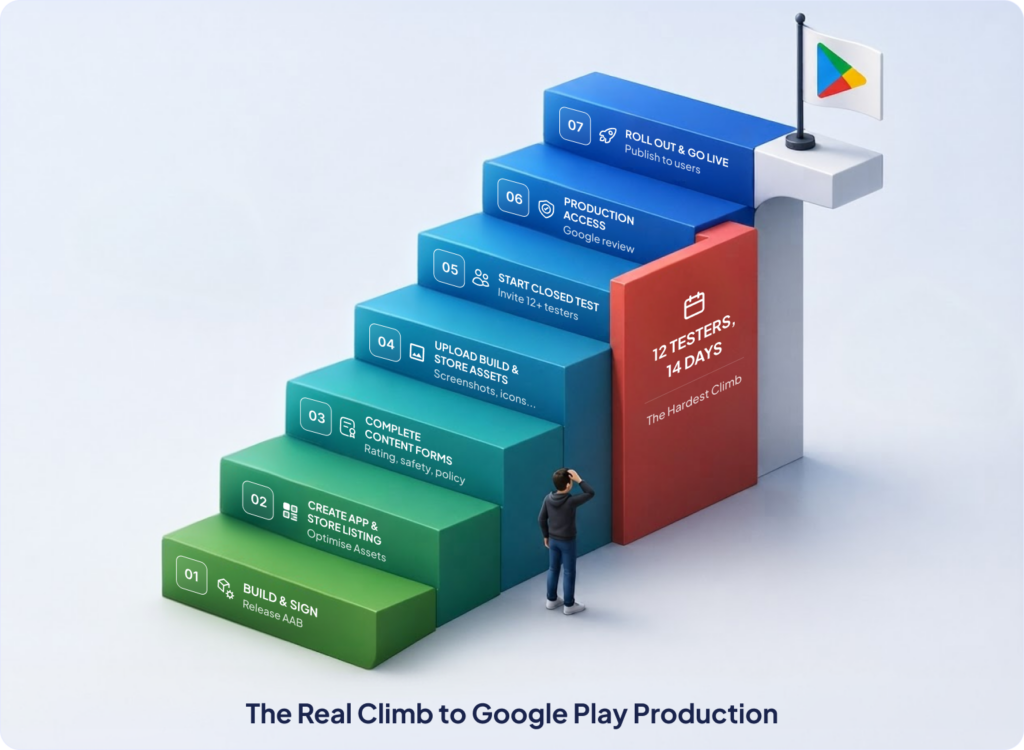
Publishing an app should be simple. Build it. Upload it. Tap publish. Go live.It does not work that way anymore.
One rule now stops most first time developers dead. The Play Console barely explains it. And a flawless app will not save you from it. That is the full map. Here is every stop on it, with the traps that catch people at each one.
After shipping 200+ apps to the Play Store, one truth stands out at Auspicious Soft. Code almost never blocks a launch. The account setup, the forms, and the tester rule do. So this guide lives right there, in the spots that actually cost people time.
What the Timeline Really Looks Like
Most people plan for one afternoon. Then reality lands. Here is an honest schedule for a brand new account.
| Stage | Typical Time |
|---|---|
| Build and sign the AAB | A few hours |
| Open and verify the Play Console account | 1–2 days |
| Complete the store listing and content forms | 2–4 hours |
| Closed testing with 12 testers | 14 days (mandatory, no shortcut) |
| Production access review | Up to 7 days |
| Total for a new Play Console account | About 2–3 weeks |
See the two big blocks? The 14 day test and the review. Neither one speeds up. So kick them off early and knock out the easy work while the clock runs.
What You Need Before You Publish on Google Play
Gather these first. Hunting for them mid upload is how a launch slips a full day.
| What You Need | Why It Matters |
|---|---|
| A Google account | Used as your Play Console developer login. |
| $25 registration fee | A one-time payment, not an annual subscription. |
| A signed Android App Bundle (AAB) | The required format for publishing new Android apps on Google Play. |
| App icon and screenshots | Required to complete and publish your store listing. |
| A privacy policy URL | Mandatory for nearly all apps on Google Play. |
| A short and full app description | Explains your app to users and helps improve Play Store visibility. |
| 12 real testers (new accounts only) | Required to complete the mandatory closed testing period before production access. |
Skip one and the console stops you cold at that step. So line them all up before you begin.
Step by Step: How to Publish an App on the Google Play Store
Step 1. Build and Sign a Release Ready Android App Bundle
Google Play no longer accepts plain APK files for new apps. You need an Android App Bundle, or AAB. In Android Studio, go to Build, then Generate Signed Bundle, then pick Android App Bundle.
Now the part that burns people. Your app gets signed with a key. Turn on Play App Signing so Google holds the main signing key while you keep an upload key. Do this and a lost key is fixable. Skip it, lose your keystore, and you can never update that app under the same listing again. Ever.
One app came to the Auspicious Soft team for exactly this reason. The original developer had vanished with the only keystore. The app was stuck. The fix was ugly: a fresh listing, a new launch, and every rating gone. Do not be that story. Back up the keystore in two places today.
Teams building with Flutter app development or React Native app development export the same AAB from their build tools, so this step looks the same no matter your stack.
Step 2. Set Up Your Google Play Console Account
Head to the Google Play Console and sign up for a Google Play Developer account. Pay the $25 once. That fee never comes back around.
Choose your account type with care, because it changes everything downstream.
- Personal account: Fast to open. But it triggers the tester rule below.
- Organization account: Needs a legal business name and a DUNS number. In return, it skips the tester rule entirely.
New accounts also go through identity verification now. Google may ask for a photo ID, an address, and a phone number, and it can take a day or two to clear. For any real business app, the organization account is worth the paperwork. It dodges the two week test and it shows a company name on your store listing, which reads as more trustworthy to users.
Step 3. Create Your App and Build a Store Listing That Ranks
Inside the console, tap Create app. Set the name, the default language, and whether it is an app or a game, free or paid.
Then build the store listing. This is where your ranking inside Play Store search is won or lost. Google gives you tight limits, so every word counts.
| Store Asset | Requirement |
|---|---|
| App title | Up to 30 characters |
| Short description | Up to 80 characters |
| Full description | Up to 4,000 characters |
| App icon | 512 × 512 pixels |
| Feature graphic | 1024 × 500 pixels |
| Phone screenshots | At least 2 required |
Here is the App Store Optimization move most people miss. The short description is the line users read first, and it carries real ranking weight. So make it a hook, not a shrug. Put your main keyword in the title and again in the first line of the full description. Then write like a person. Lead with what the app does and who it helps, not with buzzwords.
Step 4. Complete the App Content Forms: Privacy, Data Safety, and Content Rating
Google walls off the publish button behind a set of forms. Leave any blank and the button stays gray.
- Content rating: A short questionnaire that sets your age rating.
- Data safety: You declare what data the app collects and why.
- Privacy policy: A live link to your policy page.
- Ads and target audience: You state if the app shows ads and who it is built for.
- Permissions declaration: Required for sensitive access like SMS, Call Log, or location.
Fill these out honestly, and match them to what the app truly does. A mismatch is a fast rejection.
Take a fintech app the Auspicious Soft team shipped last year. Clean build. Passed every internal check. Google bounced it twice anyway. The reason both times was the data safety form. It claimed the app collected no financial data, while the app plainly asked for bank details. Google caught the gap in minutes. The lesson stuck: the form has to tell the same story as the app.
Step 5. Run Closed Testing: 12 Testers for 14 Days
Here is the wall. If your personal account was created after November 13, 2023, you cannot publish straight to the public. First you must run a closed test with at least 12 testers for 14 days in a row.
The catch trips up nearly everyone. Those 12 people must opt in with a real Google account, install the app, and actually open it now and then. Ghost installs are dead. Google now tracks whether testers use the app across the two weeks, so a room full of installs that never launch will not pass.
Three tips that save the cycle:
- Invite 20, not 12. People drop out. A buffer protects your 14 day count.
- Ship one small update during the test. Even a tiny fix signals to Google that the test is real, not a stalling tactic.
- Send testers the opt in link. The app will not show up if they search for it. They must use the link.
Organization accounts skip this rule. So do accounts created before that date. Everyone else waits out the full 14 days.
Step 6. Apply for Production Access
Once the 14 days pass, a button unlocks. Now you fill a short production access form. Google asks about your app, your testing, and your audience.
Answer in plain, specific words. Vague forms get sent back. Say who the app is for, what you tested, and what you learned. Google says this review usually takes 7 days or less.
Step 7. Roll Out and Go Live with a Staged Release
Approved? Push the app to the Production track. You can release to everyone at once, or use a staged rollout to reach a slice of users first.
For a first launch, stage it. Start at 20 percent. Watch your crash reports and early reviews for a day or two. Then climb to 50, then 100 percent once it holds steady. If something breaks, you halt the rollout before it hits your whole audience. One bad build caught at 20 percent is a shrug. The same build at 100 percent is a fire.
Want Your App Live on Google Play in Weeks, Not Months?
Auspicious Soft builds and ships Android apps end to end, testers and forms included.Google Play Testing Tracks Explained
Google Play hands you four tracks. Knowing which is which clears up a lot of confusion.
| Track | Best For | Testers | Required Before Production? |
|---|---|---|---|
| Internal testing | Quick testing by your own team | Up to 100 | No |
| Closed testing | Mandatory pre-launch testing | At least 12 | Yes, for new personal developer accounts |
| Open testing | Public beta before launch | Anyone with the link | Optional |
| Production | Public release on Google Play | Everyone | Final live release |
Most new developers run internal first to smoke test, then closed to clear the rule, then production.
How Much Does It Cost to Publish an App on Google Play
The Play Store side is cheap. One $25 fee, paid a single time, and you can publish as many apps as you want. Apple charges $99 every single year, so Google is the friendlier gate by a wide margin.
Building the app is the real cost, not publishing it. Prices swing hard by features, platform, and polish. For honest numbers, see the Android app development cost in USA guide.
Common Reasons Google Play Rejects Your App
The code passes. The listing does not. That is the usual story.
- A broken or missing privacy policy link.
- A data safety form that does not match what the app really collects.
- Screenshots that show the wrong app, wrong content, or a rival brand.
- Missing reasons for sensitive permissions like SMS or location.
- Copied icons, names, or content that looks like another product.
- A crash on first open that a tester never reported.
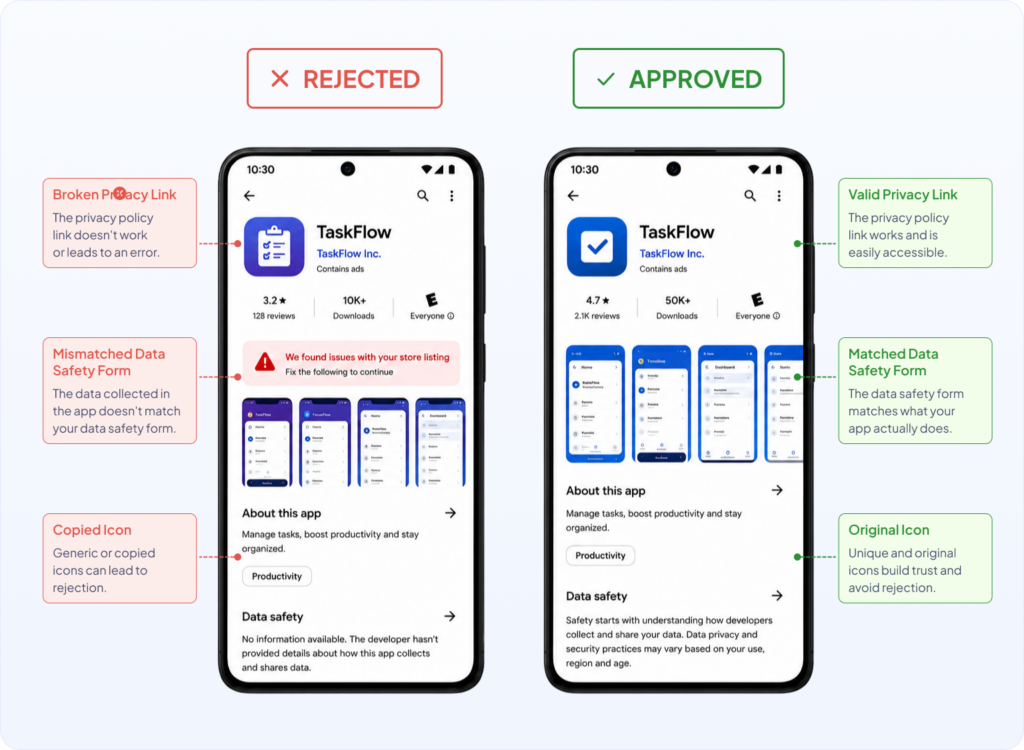
Clean these up before you submit and most rejections simply vanish. The Play Store weighs trust as heavily as it weighs function.
New Google Play Rules for 2026 You Should Know
The rules shift every year. Three changes matter most right now.
First, new apps must meet the target API level requirements. By August 31, 2026, new apps have to target API 36, which is Android 16. Build against an old API and Google will reject the upload.
Second, Google is rolling out developer verification. Enforcement starts September 30, 2026 in Brazil, Indonesia, Singapore, and Thailand, then spreads wider. It is an identity check, and it sits apart from the tester rule. Read the Google Play developer policies so nothing catches you off guard.
Third, Google is introducing a free Limited Distribution account. It costs nothing and needs no government ID, but it only ships to up to 20 devices, not the open Play Store. It is handy for a private tool or a demo, not for a public launch.
Should You Publish Yourself or Hire an Android App Development Team
Doing it yourself works fine for a simple app and a patient founder. The steps are clear once you can see them all in one place, like here.
But the timeline runs longer than most people expect. The tester rule alone eats two weeks. The forms punish guesswork. One wrong answer can stall a launch for days. That is why many founders hand the whole launch to an Android App Development team instead.
A seasoned mobile app development company has run this loop hundreds of times. They line up the testers, fill the forms right on the first try, and get you live faster. Planning to launch on iPhone too? The iOS app development path runs on different rules, so it pays to plan both at once.
Want Your App Live on Google Play in Weeks, Not Months?
Auspicious Soft builds and ships Android apps end to end, testers and forms included.Your Google Play Launch Day Checklist
Run through this before you hit submit.
- Signed AAB built, with the keystore backed up in two places.
- Play App Signing turned on.
- App targets API 36 (Android 16).
- Title, short description, and full description written with your keyword.
- Icon (512 by 512), feature graphic (1024 by 500), and at least 2 screenshots uploaded.
- Privacy policy link live and working.
- Data safety and content rating forms match the real app.
- Closed test done, 12 testers, 14 full days (new accounts).
- Production access form answered in plain, specific words.
- Staged rollout set to start small.
FAQs
Q: How much does it cost to publish an app on the Google Play Store?
It costs a one time $25 registration fee. After that you can publish as many apps as you want at no extra charge.
Q: How long does it take to publish an app on Google Play?
Plan for about two to three weeks. The setup takes a few hours, but the required 14 day closed test stretches the timeline for new accounts.
Q: Do I really need 12 testers to publish my app?
Yes, if your personal account was created after November 13, 2023. You need at least 12 testers opted in for 14 days straight. Organization accounts are exempt.
Q: Can I publish an app on Google Play for free?
The $25 fee is required for a standard account. Google is introducing a free Limited Distribution account, but it only ships to up to 20 devices, not the open Play Store.
Q: What is an AAB file?
An AAB is an Android App Bundle. It is the file format Google Play requires for all new app uploads, and it replaced the older APK format.
Q: Why did Google reject my app?
The most common reasons are a missing privacy policy, a data safety form that does not match the app, or content that looks copied. Fix those and resubmit.
Q: Can I update my app after it goes live?
Yes. You upload a new AAB with a higher version number and roll it out. A staged rollout lets you test the update on a few users first.
Q: Do I need a company to publish an app on Google Play?
No. A personal account works. But a company organization account skips the 12 tester rule and shows your business name on the listing.
Q: How long does Google take to review an app?
Google says production review usually takes 7 days or less, though first submissions can run a little longer.
Do not Miss Our Latest Tech Insights
Stay one step ahead in the fast-moving world of AI and technology. Add us as a Preferred Source on Google and get our latest articles, guides, and industry insights delivered straight to your search feed.